Sitka Training Video - Placing Holds (6:18)
Sitka Snippet Video - Patron Search in Place Hold (0:51)
Sitka Snippet Video - Suspend a Hold While Placing the Hold (1:10)
Holds can be placed by staff in the staff catalogue and by patrons on your public catalogue.
Note
In the staff catalogue, the option for placing holds for hold groups will only appear if your library has at least one hold group.
The Recent Patron button will only appear if the library setting Place holds for recent patrons has been set to TRUE. The value of the library setting Number of Retrievable Recent Patrons determines how many recent patrons will display.
Sitka Snippet Video - Placing Title Level Holds (2:05)
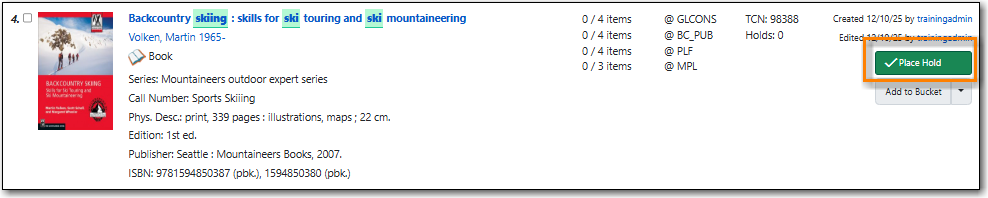
To place a title level hold, click the Place Hold button to the right of the record in the search result list, or on the record summary screen.
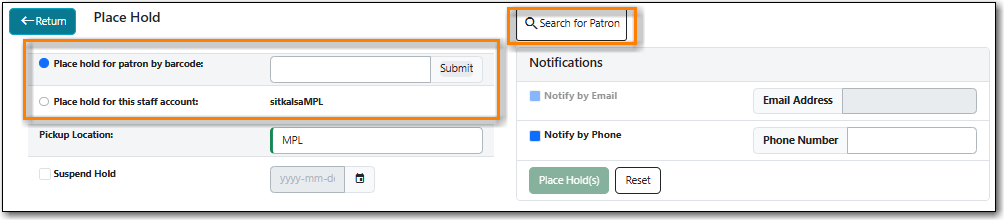
Enter the patron’s barcode if you have it or click Search for Patron or Recent Patron.
You can also use the radio buttons to select the logged in staff account or a hold group.
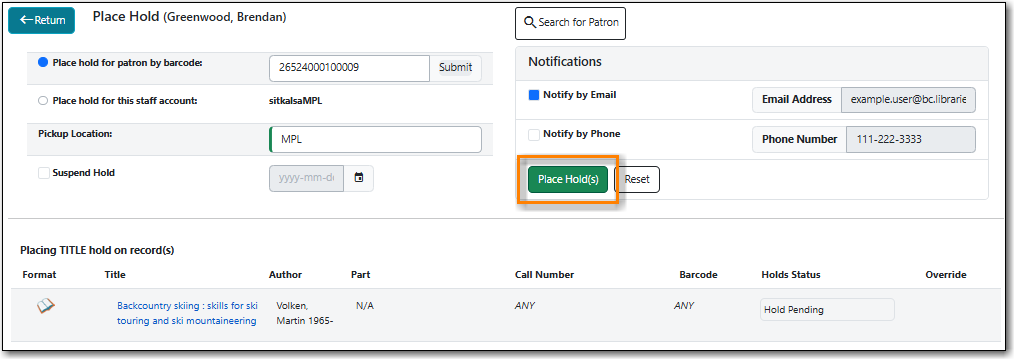
The selected patron’s information will populate. Edit notification methods and pickup location if necessary and click Place Hold(s).
Any method or contact number entered on this screen will override defaults in patron record and will be used for display and print purposes for this hold.
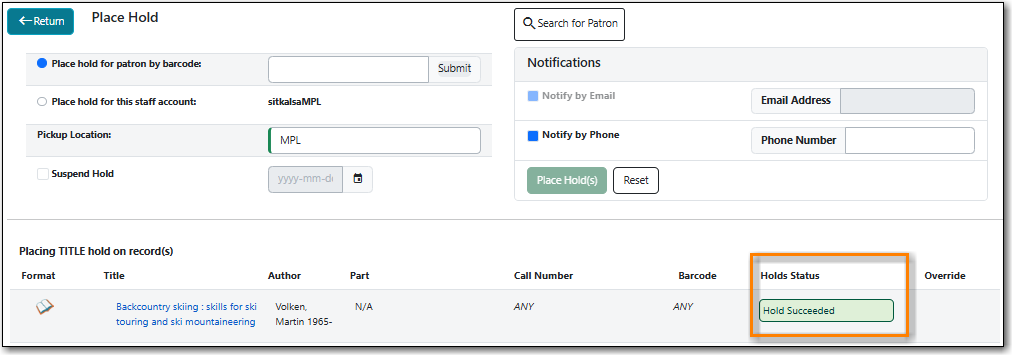
The Holds Status field will update to indicate whether or not the hold was sucessfully placed. See the section called “Hold Placement Status Messages” for the possible messages. You can now place another hold for this title or click Return to go back to the search results.
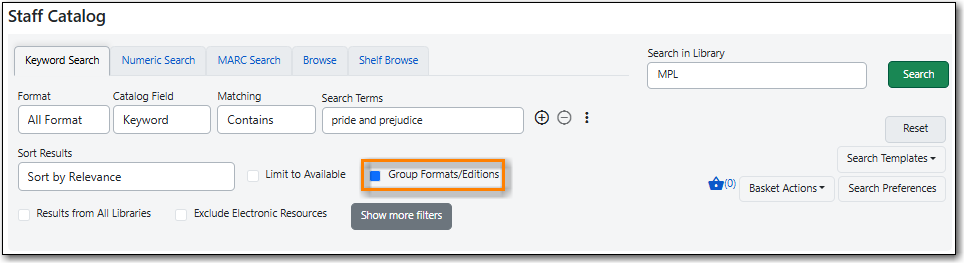
You can request acceptable formats and languages of a title at time of hold placement, or you can group formats at time of search. Records are grouped by title, author, and format. Format information is from the MARC record leader and fixed fields.
On the Keyword Search tab, check the box for Group Formats and Editions. Enter your search terms and click Search.
Click Place Hold button to the right of the record in the search result list.

All formats and languages are selected by default. Un-select options as desired.

Enter the patron’s barcode if you have it or click Search for Patron or Recent Patron.
- You can also use the radio buttons to select the logged in staff account or a hold group.
Edit the patron notification fields if necessary and click Place Hold(s).
Any method or contact number entered on this screen will override defaults in patron record and will be used for display and print purposes for this hold.
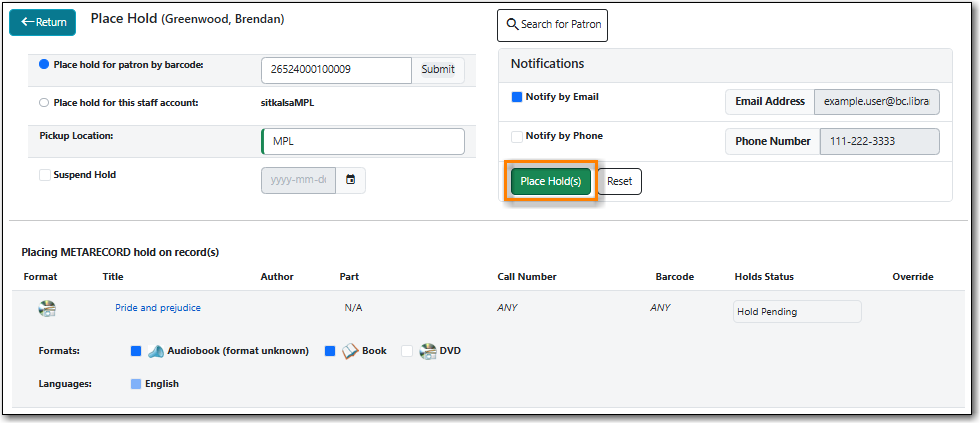
- The Holds Status field will update to indicate whether or not the hold was sucessfully placed. See the section called “Hold Placement Status Messages” for the possible messages. You can now place another hold for this title or click Return to go back to the search results.
Note
After a meta-record hold is placed, if a new MARC record is added and it meets the grouping criteria, items under this new record will be targeted.
- To place a call number or item level hold, retrieve and display the record.
In the Item Table click Call Number Hold or Item Hold in the Holdable? column.

Enter the patron’s barcode if you have it or click Search for Patron or Recent Patron.
- You can also use the radio buttons to select the logged in staff account or a hold group.
Edit the patron hold notification fields as required and click Place Hold(s).
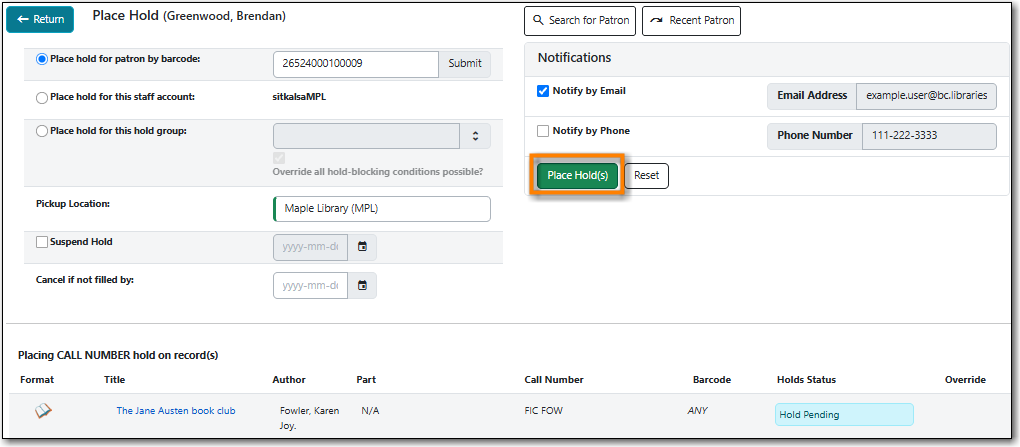
- The Holds Status field will update to indicate whether or not the hold was sucessfully placed. See the section called “Hold Placement Status Messages” for the possible messages. You can now place another hold for this call number or item, or click Return to go back to the search results.
Caution
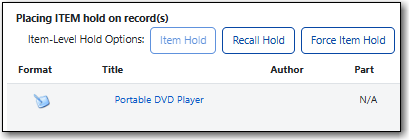
Co-op Support recommends only using items holds if it’s absolutely necessary to target a particular physical item. Item holds should never be used when placing holds on items owned by other libraries.
Do not use the Recall Hold or Force Item Hold buttons.
To place a hold for a Hold Group, click the Place Hold button to the right of the record in the search result list, or on the record summary screen.
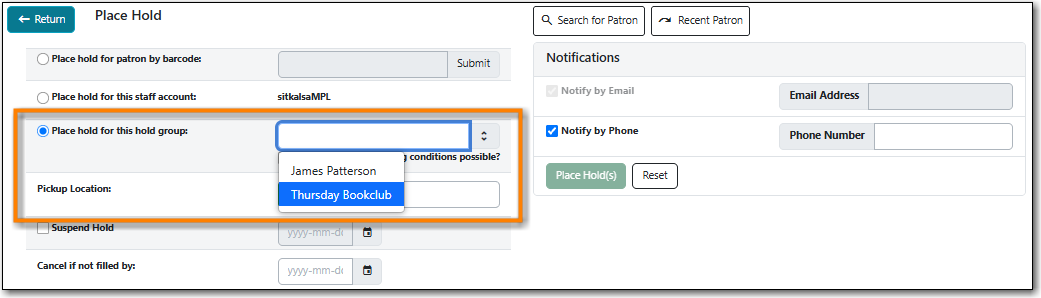
Use the radio buttons to select a hold group and use the drop down to choose the Hold Group from the list.
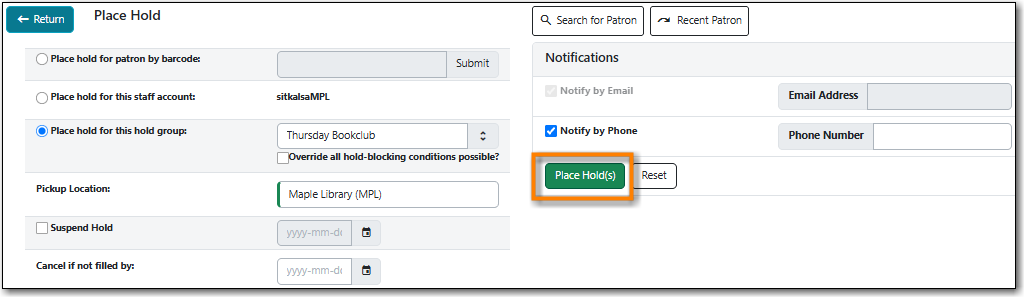
Click Place Hold(s).
The Holds Status field will update to indicate whether or not the hold was sucessfully placed. See the section called “Hold Placement Status Messages” for the possible messages. You can now place another hold for this title or click Return to go back to the search results.

Note
Please note that pickup location and notification preferences adhere to the defaults for the respective patrons. These should not be edited while placing holds for hold groups. Patrons can edit their notification preferences and pickup locations from My Account on the public catalogue after the hold is placed.
Sitka Snippet Video - Placing Holds from the Patron Account (1:03)
- Click the Holds tab in the patron’s account .
Click Place Hold.
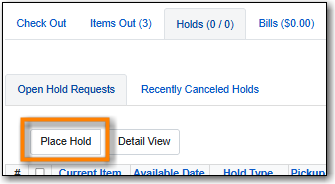
- The staff catalogue will open.
- Search for the title and place your hold as described in the section called “Placing Title Level Holds”.
Click Return to return to your search results, the patron’s name to return to the patron’s account, or Clear to continue in the staff catalogue without the link to the patron.

When placing a hold in the staff client library staff may see the following messages in the Holds Status column:
Hold Pending - Evergreen is waiting for the hold to be placed.
Hold Succeeded - The hold has successfully been placed for the patron.
HIGH_LEVEL_HOLD_HAS_NO_COPIES - This indicates that there are no holdable items that can fill the hold.
ITEM_AGE_PROTECTED - This indicates that the item is under age-based hold protection set through the items attributes and cannot currently fill holds at your library. If you override and place the hold it will eventually be filled when the item is no longer protected.
ITEM_NOT_HOLDABLE - This indicates that the item is under age-based hold protection set through the Hold Policies and cannot currently fill holds at your library. If you override and place the hold it will eventually be filled when the item is no longer protected.
The following messages indicate that the patron’s account has a system or staff generated block on it preventing holds from being placed. The thresholds for staff generated blocks are determined by your group penalty thresholds.
PATRON_EXCEEDS_FINES - This indicates that the patron has a system generated block because they have exceeded your fine threshold.
PATRON_EXCEEDS_OVERDUE_COUNT - This indicates that the patron has a system generated block because they have exceeded your overdue item threshold.
PATRON_EXCEEDS_LOST_COUNT - This indicates that the patron has a system generated block because they have exceeded your lost item threshold.
STAFF_CHR - This indicates that the patron has had a manual block placed on their account by staff.
Staff with appropriate permissions can choose to override these blocks and place the hold.


