Table of Contents
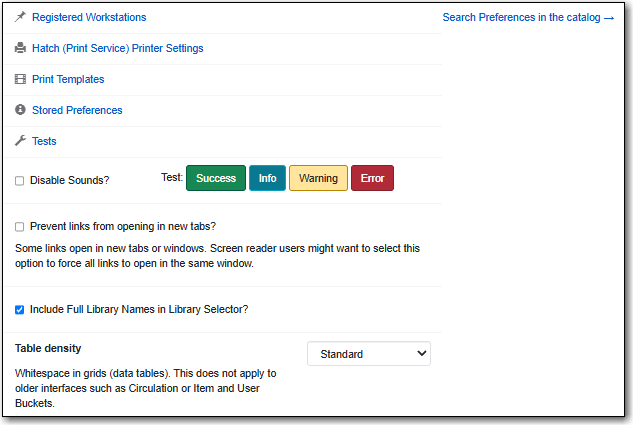
There are a number of workstation settings that can be set by going to Administration → Workstation.
These settings apply to the logged in workstation. For the settings to take effect you must log out and back into the workstation.
Note
With the exception of Sounds, these settings only apply to interfaces written in angular code, such as the staff catalogue. The settings will not apply to older interfaces, such as most of circulation.
Libraries can expect to see these settings apply to more interfaces in the future as the older parts of the staff client are re-written in the newer code.
Sound is on by default in the staff client. You can test the sounds and disable them if desired.
Test Sounds
Click the buttons to test the staff client sounds.
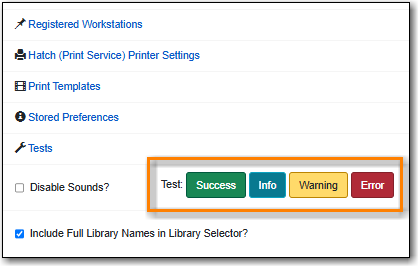
Distinct sounds will be played for each event.
- Success
- Info
- Warning
- Error
Disable Sounds
Check the box for Disable Sounds to turn off the staff client sounds.
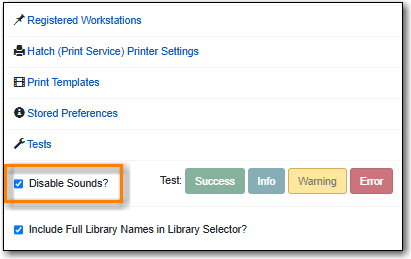
- This will also disable the sound test buttons.
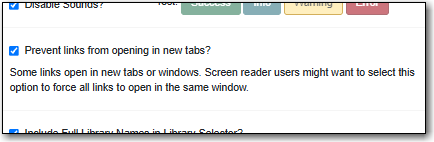
Check the box for Prevent links from opening in new tabs to force all links to open in the same window.
- Log out of the staff client.
- Clear your browser cache. See the section called “Clear Cache”.
- Log into the staff client. Links will now only open in the same tab.
Sitka Snippet Video - Turning on Full Library Names (1:19)
Check the box for Include Full Library Names in Library Selector to show the full name, as well as the short code, in library selectors in the staff client.
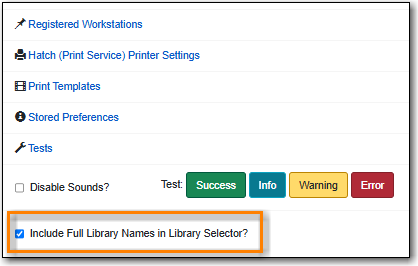
- Log out of the staff client.
- Clear your browser cache. See the section called “Clear Cache”.
- Log into the staff client. The full library name will now display in the library selector drop down.
From the drop down for Table density select Compact, Standard, or Wide.
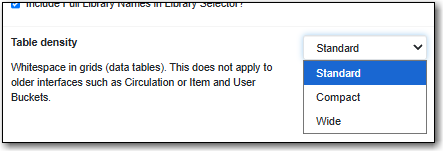
- Log out of the staff client.
- Clear your browser cache. See the section called “Clear Cache”.
- Log into the staff client. The table density in newer interfaces will follow your choice.

