Table of Contents
Sitka Snippet Video - Search Preferences (1:48)
Catalogue search preferences can be set directly in the staff client.
In the staff catalogue click on Search Preferences.
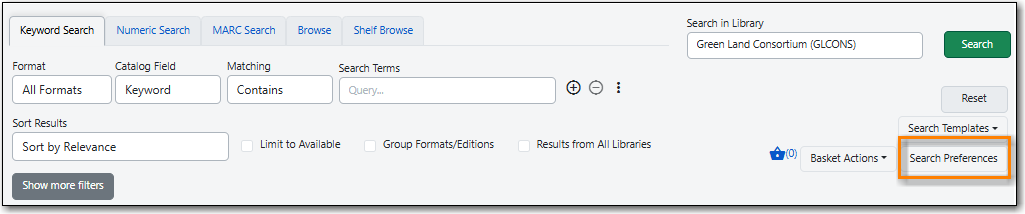
Set the values you would like for your preferences.
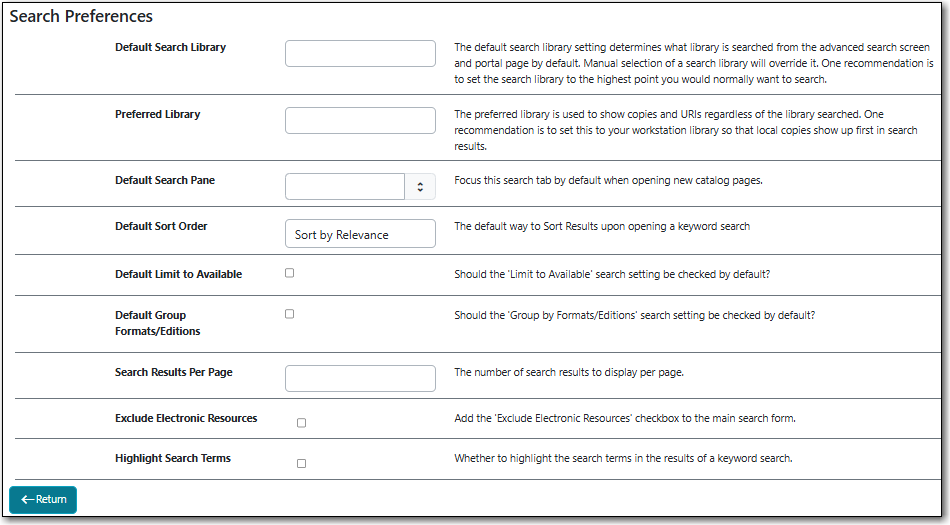
- Default Search Library This determines what library is searched from the advanced search screen and portal page by default. You can override this setting when you are actually searching by selecting a different library. One recommendation is to set the search library to the highest point you would normally want to search.
- Preferred Library This determines which library’s holdings display first in the item grid within a search result and in the Item Table within a record. If your preferred library is a descendant of your search library, the item count in in the search result will display for both your search library and preferred library. One recommendation is to set this to your home library so that local counts show in the search results when you are searching all of Sitka or a particular ILC zone.
- Default Search Pane You can choose which search pane is loaded by default when opening a new catalogue window. Choose from Keyword Search, Numeric Search, MARC Search, Browse, and Shelf Browse.
- Default Sort Order You can choose what sort order is used by default for sorting your search results.
- Default Limit to Available When this setting is checked, the Limit to Available checkbox in the search form will be checked by default.
- Default Group Formats/Editions When this setting is checked, the Group Formats/Editions checkbox in the search form will be checked by default.
- Search Results Per Page You can enter the number of search results that display per page. We recommend keeping this number under 200.
- Exclude Electronic Resources When this setting is checked, the Exclude Electronic Resources checkbox is added to the search form. Note, this does not check the box within the search form by default.
- Highlight Search Terms When this setting is checked, the search terms used in a keyword search will be highlighted in the search results.
Note
The preferences set in the staff client override any preferences for the logged in account that have been set in the public catalogue via My Account.