Table of Contents
Each title in the catalogue is represented by a bibliographic record. This record contains detailed information about the title. There may be multiple records for a given title if the title has multiple editions, formats, or publishers in your catalogue. While the goal is to have one MARC record in the database for each discrete bibliographic title which all libraries add their holdings to, in practice this doesn’t always happen so libraries may see duplication of records when searching beyond their library or system.
The bibliographic record display can be accessed:
- through the staff catalogue by clicking on the hyperlinked title or cover image in a search result
- throughout the staff client by clicking on the hyperlinked title in any grid it appears in
The Bibliographic Record Display is a robust interface through which you can view the MARC record, information about the items attached to the record, holds associated with the record, and more. You can also perform a number of actions through this interface.
The display is divided into 4 sections:
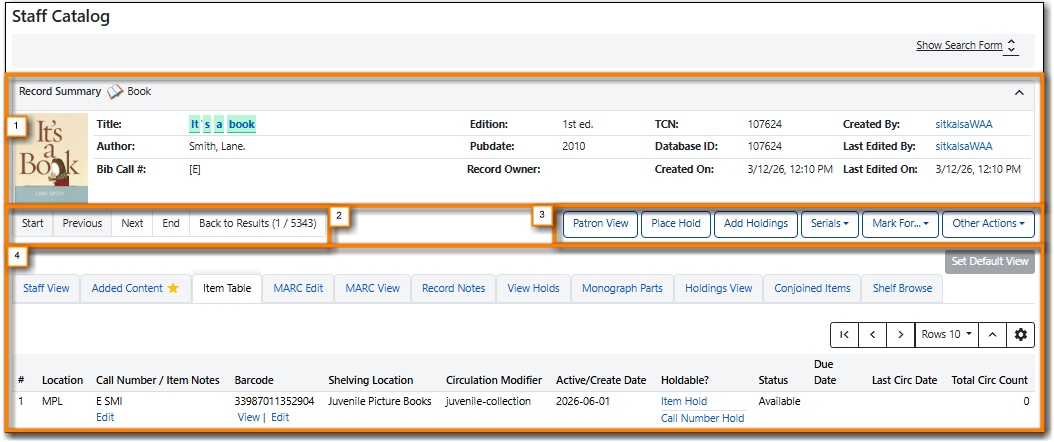
The Record Summary contains basic information about the title.
| Field | Description | Note |
|---|---|---|
Format Icon | The type of item, such as book, DVD, or large print book. | See the section called “Format Icons” for information on how Evergreen determines which format icon to display. |
Cover Image | An image of the specific version of this title or non-bibliographic item. | If the cover image is missing see the Sitka FAQ Why isn’t there cover art for my record? for more information. |
Title | The title of the work from the 245 $a field of the MARC record. | The title is a hyperlink. Selecting the title will direct you to the record with no other information in the URL which can be useful for sharing the record with other staff. |
Author | The author’s name exactly as it appears in the MARC record. | |
Bib Call # | The bibliographic call number from the 050 or 082 field of the MARC record. | This is not the call number created through the Holdings Details section of the Holdings Editor and associated with an item. |
Edition | The title’s edition from the 250 field of the MARC record. | |
Pubdate | The title’s publication date, taken from character 07-10 of the 008 field in the MARC record. | |
Record Owner | This field currently has no use in Evergreen. | All bibliographic records in the Sitka database are the shared property of the BC Libraries Cooperative, regardless of the holdings attached. |
TCN | The record’s Title Control Number. | In Sitka, the TCN is always the same as the record’s database ID. |
Database ID | The record’s database ID. | When reporting issues with bibliographic records to Co-op Support please include the database ID. |
Created On | The date the record was created. | |
Created By | The staff account that created the record. | While this is field is a hyperlink to the staff account, you will be unable to view the account if they are not from your library or opted into your library. |
Last Edited By | The staff account that last edited the record | While this is field is a hyperlink to the staff account, you will be unable to view the account if they are not from your library or opted into your library. If there is a concern about edits to a bibliographic record please contact Co-op Support. |
Last Edited On | The date the record was last edited on. |
Use the arrow in the right hand corner to collapse and expand the record summary panel as desired. When collapsed only Title, Edition, TCN, and Created By will be shown.

If you accessed the bibliographic record through a search, you can navigate to the records for other results from your search directly from this record. Use the buttons below the Record Summary to the left to navigate your search results.
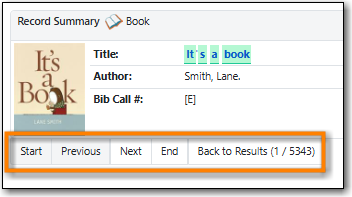
The following buttons are available:
- Start: View the record for the first search result.
- Previous: View the record for the search result before this one.
- Next: View the record for the search result after this one.
- End: View the record for the last search result.
- Back to Results (# / #): Return to the search results page. The first number indicates the position of the current record in the search results. The second number indicates the total number of results.
Note
If you accessed the record by clicking on the title hyperlink in a grid, such as in Item Status, the search results navigation buttons will not display.
A number of actions can be performed using the Action buttons located below the Record Summary.
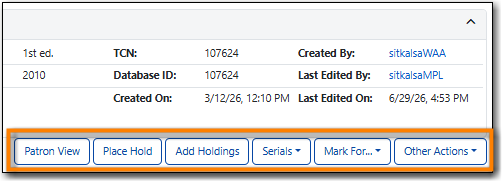
The following actions are available:
- Patron View - The record will open in your public catalogue or discovery layer in a new tab. The value set in the library setting Patron view discovery layer URL determines what public catalogue or discover layer opens.
- Place Hold - See the section called “Placing Title Level Holds”.
- Add Holdings - See Chapter 21, Adding Holdings.
- Serials → Quick Receive - See Chapter 51, Serials Receiving.
- Serials → Manage Subscriptions - See Chapter 50, Serials Subscriptions.
- Serials → Manage MFHDs
- Mark For… → Conjoined Items
- Mark For… → Overlay Target - See the section called “Overlaying Records via Z39.50 Interface”.
- Mark For… → Title Hold Transfer - See the section called “Transferring Holdings”.
- Mark For… → Holding Transfer - See the section called “Transferring Title Holds”.
- Mark For… → Reset Record Marks - This removes all marks from the record.
- Other Actions → Add To Bucket - See the section called “Adding Records to a Record Bucket via the Staff Catalogue”.
- Other Actions → Add To Carousel - See Sitka Carousels in the LibPress manual.
- Other Actions → Upload Cover Image - See the section called “Uploading a Cover Image”.
- Other Actions → Clear Added Content Cache - This option will clear the cache for content on the added content tab (if enabled) and cover art images.
- Other Actions → View/Place Orders - See the section called Creating Purchase Orders via View/Place Orders and the section called Adding Line Items to Purchase Orders via View/Place Orders.
There are eleven record views available in bibliographic record display that can be used to access information and perform actions.
Any of the record views can be set as the default view for your workstation by opening the desired tab and clicking Set Default View.
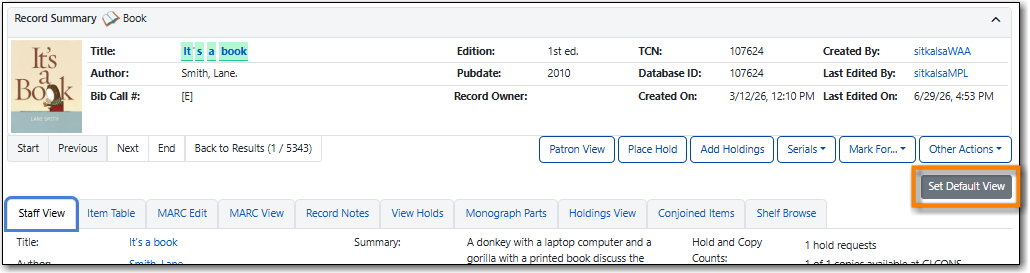
Some of the record views display as a grid. Information on customizing the grid display, including adding/removing columns and changing column widths, can be found in the section called “Grid Options”.

