Table of Contents
The basket is used to create a temporary collection of bibliographic records. The basket can be used to place holds on multiple records at once, print or email record details, add records to a record bucket, and export records to a file.
The basket in Evergreen is temporary and will empty every time you log out of Evergreen. If you want to save the contents of a basket for later, you will need to add the basket to a record bucket.
Tip
To skip the basket and add records directly to a bucket see the section called “Adding Records to a Record Bucket”.
Records can be added to the basket singly or in batch.
- Search the catalogue for the records you would like to add to a bucket, as described in Chapter 16, Searching the Catalogue.
Select the title you would like to add to the basket by checking the check box that appears beside the result number or checking the check box at the top of the result to add all results on the page.
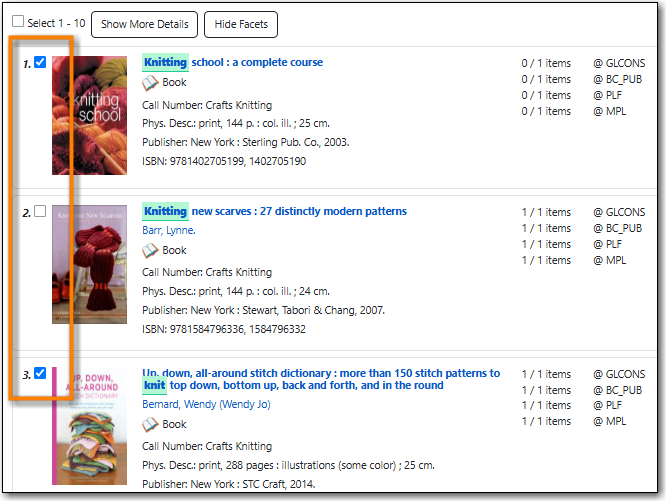
The selected record is added to your basket and the count beside the basket icon will increase.
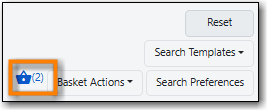
- Repeat the steps as needed to add more records to your bucket.
Note
You can also add all search results to a basket by clicking the Basket Actions button and then choosing Add All Search Results.
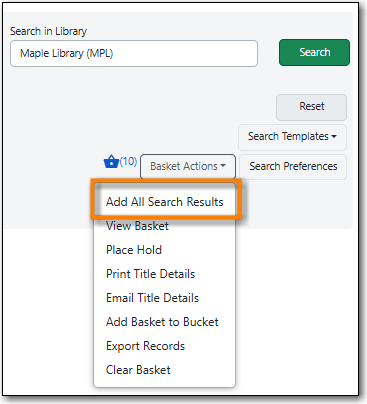
Use this option cautiously as the more search results you have the longer this will take.

