Make a note of the date you start inventory. You will need this when running reports later in the process.
There are two report templates used with inventory - Inventory - Un-scanned Items and Inventory - Scanned Items Count by Shelving Location. Both templates can be found under Sitka_templates → Inventory.
Make sure you have the most recent version of the templates cloned into your own folders. For information on cloning report templates see the section called “Cloning a Report Template”.
Best practice is to ensure that the Check In, Item Status, and In-House Use screens are set to display the call number, shelving location, and circulation modifier columns.
As items are being scanned for inventory, staff should keep an eye out for the following:
- incorrect call numbers
- call numbers not matching between Evergreen and the item
- incorrect shelving locations
- incorrect circulation modifiers
- missing circulation modifiers
Items found with one of the above issues should be pulled, so that staff with cataloguing permissions can update the items as needed.
At Check In, turn on the Update Inventory checkin modifier on all computers where items may be checked in while you are doing inventory. This ensures that any items currently circulating will have their inventory date updated when they are checked in.
- In Evergreen, go to Circulation → Check In.
From the Checkin Modifiers drop down select Update Inventory.
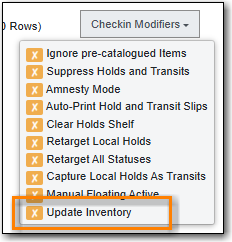
A banner will display across the top of the check in screen to indicate that the Update Inventory modifier is being used.

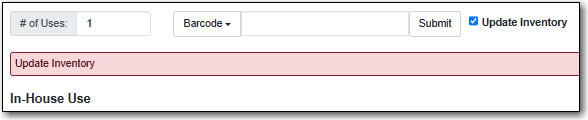
If your library tracks in-house use, check the box for Update Inventory on all computers where items may be in-housed while you are doing inventory. This ensures that any items in-housed will have their inventory date updated when they are scanned.
- In Evergreen, go to Circulation → Record In-House Use.
Check the Update Inventory check box.

A banner will display across the top of the screen to indicate that Update Inventory is enabled.