The Shelf Browse pane allows you to browse by call number. It will return results that fall around your search term alphabetically or numerically. Each result links to catalogue records. (To browse by bibliographic headings, see Browse.)
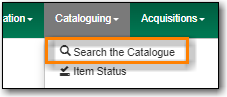
Go to Cataloguing → Search the Catalogue.
Select the Shelf Browse tab. It will be open by default if it’s set as your default search pane.
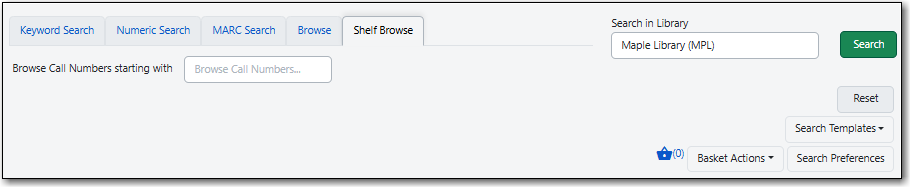
When searching it’s important to ensure that your desired search scope is set in the library selector.
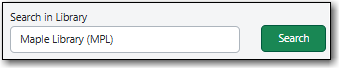
(MPL is the Maple Library on Sitka’s training server.)
Tip
Multi-branch libraries can search their entire system or a specific branch.
Libraries participating in reciprocal borrowing may wish to search their library or their ILC zone.
You can set your default search library for the workstation in Search Preferences.
Enter a call number in the Browse Call Numbers starting with text box, then click Search.
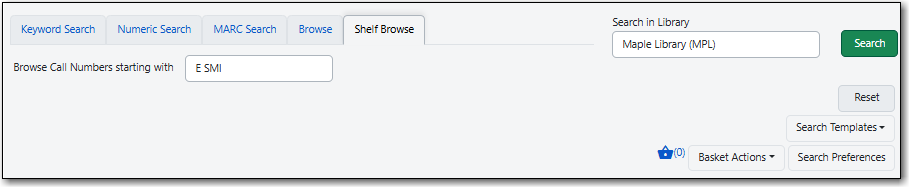
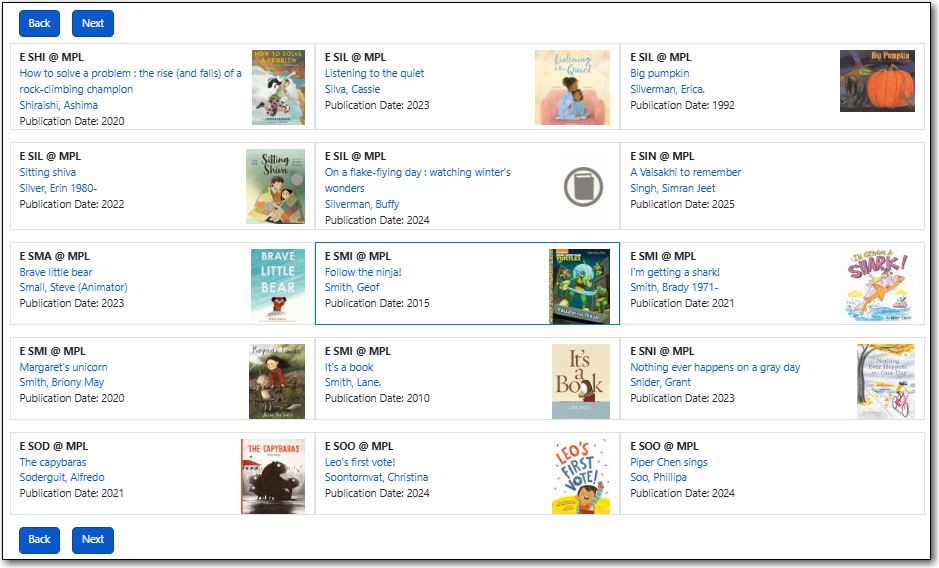
Your results are displayed. Click Next or Back, which appear above and below the results, to view more results.
Tip
Shelf Browse is best used at the smallest appropriate level, usually the branch level, due to possible variations in call number practices.

