The results of a search appear below the search form.
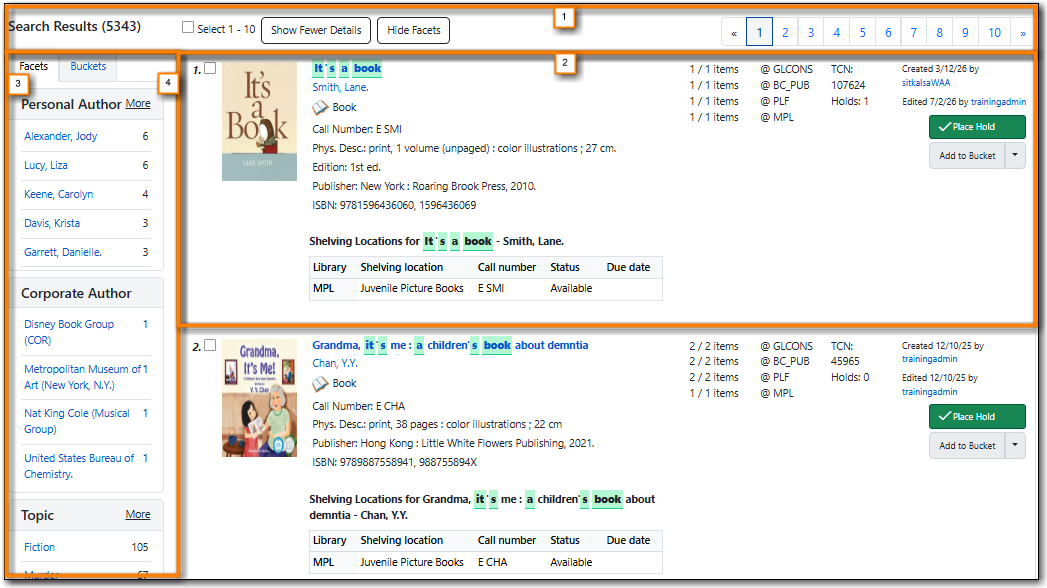

The number of results returned by the search appears in the top-left corner in parentheses beside the Search Results label.
A check box allows you to select and deselect all results on the current page.
The Show More Details/Show Fewer Details button allows you to show and hide the item table.
The Show Facets/Hide Facets button allows you to show and hide the facet bar on the left side of the screen.
The page navigation allows you to page through your results or jump to a specific page.
Each result is made up of six elements.
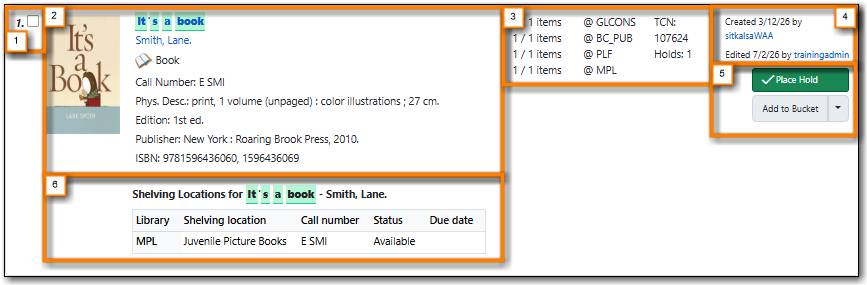
Search results are numbered sequentially.
The check box within the result can be checked to add the result to the basket. See Chapter 18, Working with the Basket.
The title description, also called the physical summary, appears on the left side of each search result. It contains the following information:
- Cover image (if supplied)
- Title
- Author
- Format with descriptive icon
- Call number
- Physical description
- Edition
- Publisher
- Identifier (ISBN, ISSN, UPC)
All information except for the cover image and call number comes from the MARC record.
Clicking on the title or cover image will take you to the bibliographic record. Clicking on the author will conduct a search for that author.
Holdings information appears to the right of the item description. Each line contains information that is specific to the location listed after the @ symbol.
The first number on each line is the number of copies on a given record at the specified location that have the status "Available" or "Reshelving." The second number is the total number of copies owned by the specified location or its descendants.
This section will show has shaded in blue if there are no physical holdings attached to the record. Records for e-resources and records where physical holdings haven’t been added yet display this way.
Tip
The consortium or highest-level location always appears on the first line. The library chosen in the Library Selector determines what will be displayed on the next line or lines. The workstation’s preferred library, if set, will appear last, if different from the preceding lines.
The title control number (TCN), which is identical to the database ID in Sitka, and the total number of holds on the record are displayed to the right of the location holdings information.
The history of the record appears on the right side of the search result. You can see when the record was created, who created it, when the record was last edited, and who last edited it.
While the library staff username is a hyperlink to the staff account, you will be unable to view the account if they are not from your library or opted into your library. If there is a concern about edits to a bibliographic record please contact Co-op Support.
The Place Hold button allows you to place a title hold on the item. See the section called “Placing Title Level Holds”.
The Add to Bucket button allows you to add the title to a record bucket. See the section called “Adding Records to a Record Bucket via the Staff Catalogue”.
The item table displays when the Show More Details button has been clicked. The table shows basic item information for up to six items attached to the bibliographic records, based on the search library scope.
The table will show information in alphabetical order by library unless a preferred library is set, in which case items for the preferred library appear first.
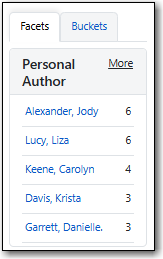
Facets appear on the left side of the search results. These facets are grouped by categories such as author, subject, genre, series, and more. Each category contains the most common information in your search results' MARC records.
Click on a facet within a given category to limit the search results to the selected facet.
Click on the facet again to remove your selection.
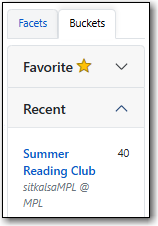
Favourite and recent record buckets can also be accessed to the left of the search result.
For more information see Chapter 27, Record Buckets.

