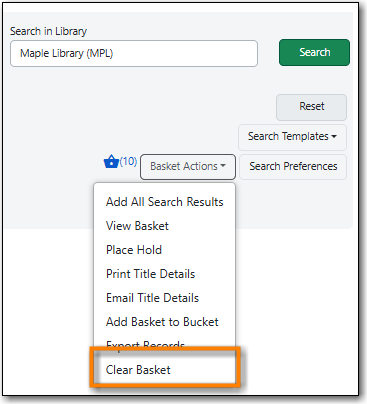
The Basket Actions menu, found by clicking on the Basket Actions button in the bottom right of the Search Form, lets you view the contents of the basket, batch place holds, print or email the title details for all titles, add the contents of the basket to a bucket, export records, and clear the basket.
The contents of the basket can be viewed in two ways:
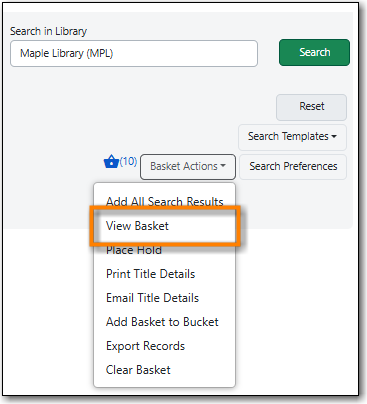
Click Basket Actions and from the drop down select View Basket.
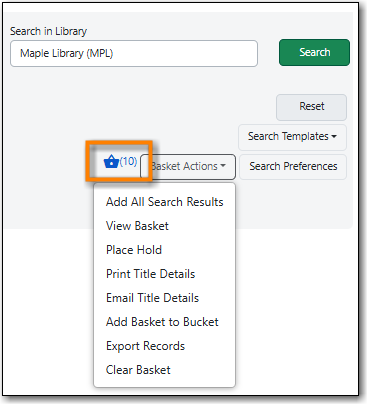
Click the basket icon in the search form, located to the left of the Basket Actions button.
Note
Records appear in the basket as they appear in the search results, although Facets are unavailable in the basket.
You can place a title level hold on every item in the basket
- Click the Basket Actions button in the bottom right of the Search Form.
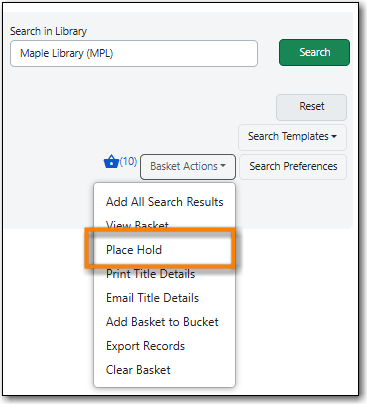
Select Place Hold from the drop down menu.
Enter the patron’s barcode if you have it or click Search for Patron.
You can also use the radio buttons to select the logged in staff account.
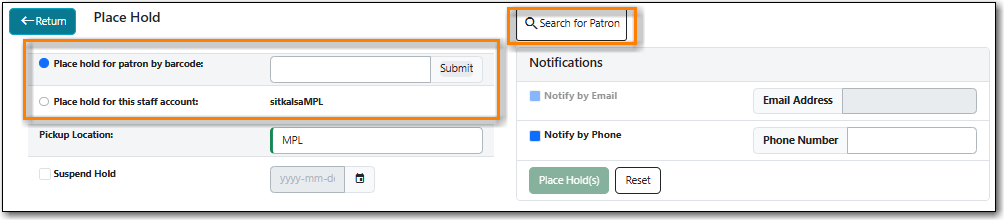
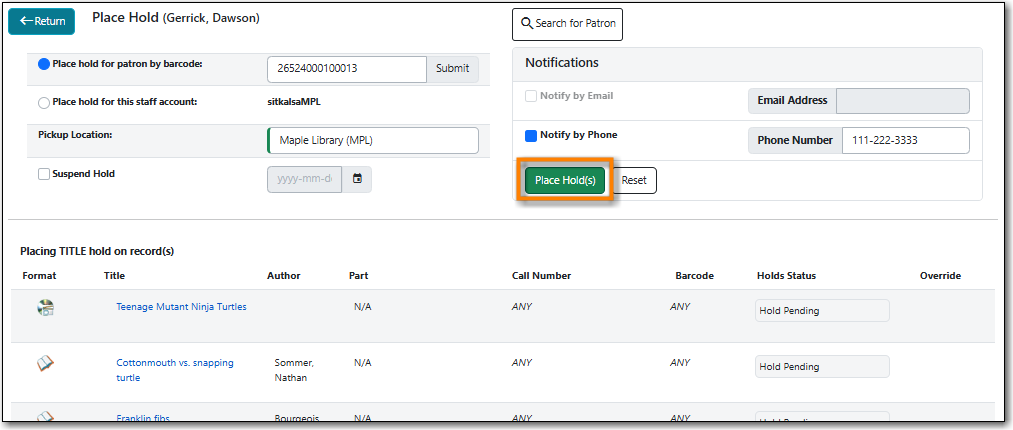
The selected patron’s information will populate. Edit notification methods and pickup location if necessary and click Place Hold(s).
Any method or contact number entered on this screen will override defaults in patron record and will be used for display and print purposes for this hold.
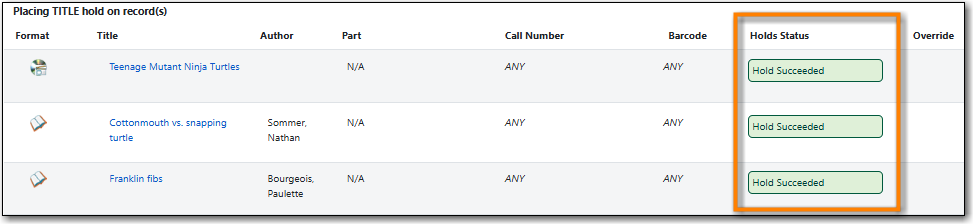
The Holds Status field will update to indicate whether or not the holds were sucessfully placed. See the section called “Hold Placement Status Messages” for the possible messages. You can now place another hold for these titles or click Return to go back to the search results.
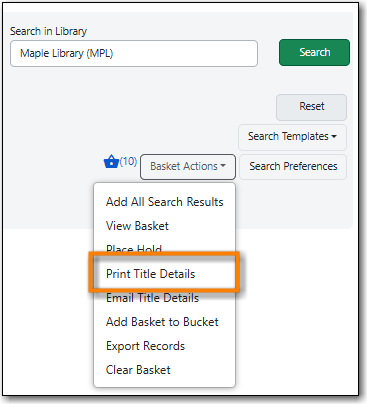
- Click the Basket Actions button in the bottom right of the Search Form.
Select Print Title Details from the drop down menu.
- A printer-friendly version of the basket will appear. Records appear in the same order as in the basket and are numbered.
- Print using your browser’s functionality.
Note
The information that displays for each listed bibliographic record may vary depending on the information in the record. Bibliographic ID number, ISBN, ISSN, UPC, title, author, publisher, publication date, and item type can be included.
- Click the Basket Actions button in the bottom right of the Search Form.
Select Email Title Details from the drop down menu.
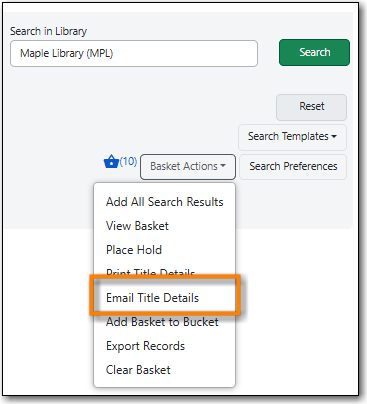
- A plaintext version of the of the basket will be emailed to the address associated with the library staff account currently logged into the staff client. Records appear in the same order as in the basket and are numbered.
Note
The information that displays for each listed bibliographic record may vary depending on the information in the record. Bibliographic ID number, ISBN, ISSN, UPC, title, author, publisher, publication date, and item type can be included.
Instructions for adding a basket to a bucket can be found in the section called “Adding Records to a Record Bucket via the Staff Catalogue”.
- Click the Basket Actions button in the bottom right of the Search Form.
Select Export Records from the drop down menu.
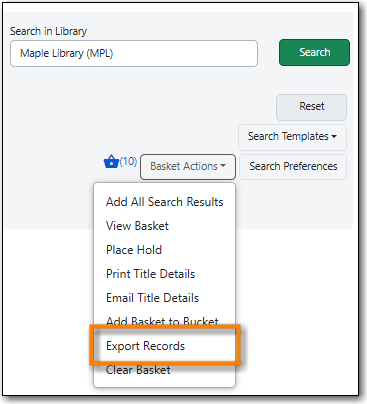
- The Export tab of the MARC Batch Import/Export interface opens.
- Select the desired Record Format from the drop down menu. You may choose MARC21, UNIMARC, MARC XML, or Evergreen Record Entry.
- Select the desired Record Encoding from the dropdown menu. You may choose UTF-8 or MARC8.
- If you wish to include holdings in the records export, check the checkbox.
Click Export to download the file.
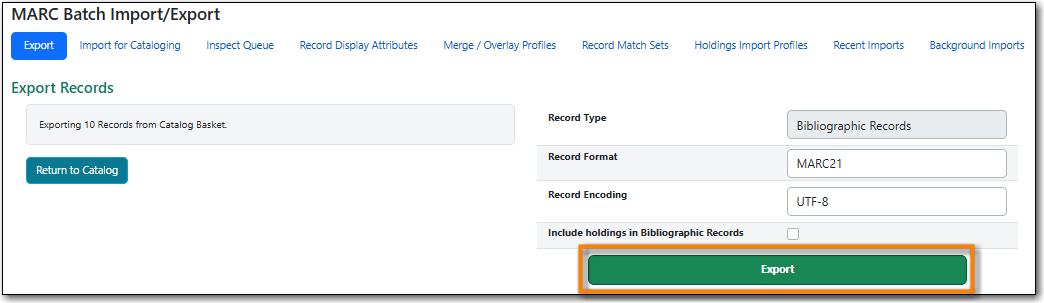
- A file will download to your browser and can then be downloaded to your computer.